Lock your AI camera:
Blender previz → MiniMax H3
Your camera. Your timing. Locked. Block one shot with gray boxes in Blender, then let MiniMax H3 in ComfyUI paint that exact shot on your own GPU. Prompts guess the camera. A blockout locks it.

What you will make
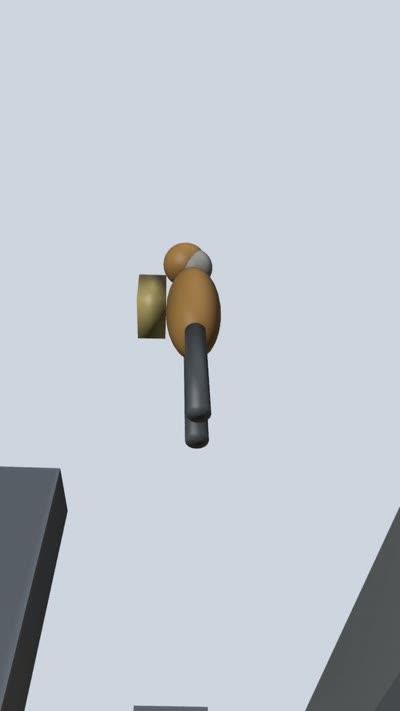
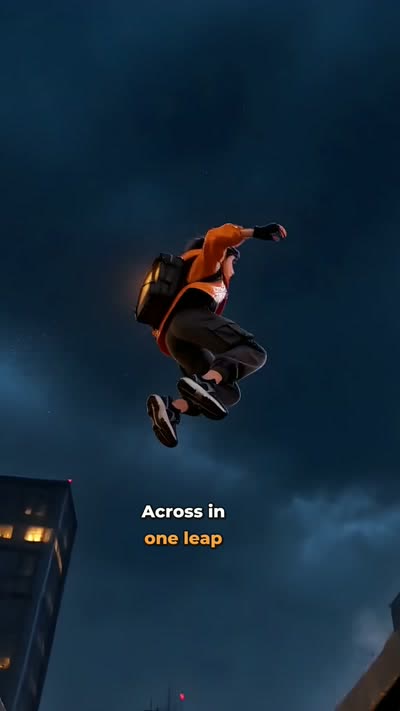
One continuous 5-second shot: a courier sprints across a rainy rooftop, leaps the gap, lands and turns to the city. The camera angle, the move and the landing frame all come from your Blender file, not from luck.
Left: Blender previz. Right: MiniMax H3 render from the same previz. AI-generated video.
What you need
| Item | Used here |
|---|---|
| GPU | 32GB-class card (RTX 5000 Ada 32GB here). No card? Rent one for 10 minutes. |
| Disk | About 52GB for the reference-mode models |
| Software | Blender 5.2, ComfyUI 0.38 with the MiniMax H3 templates. Both free. |
| Images | Any image model that accepts reference images (character sheet, first frame, style) |
Step 1. Block the shot in Blender
Open 01_blockout/scene.blend. Boxes are the rooftops, an empty is the runner, and the camera tracks a target. Keys set the run, the leap and the landing. Scrub the timeline: this is your shot. Change the camera here, never in the prompt.
Export the previz (512×896, 24 fps, 124 frames). The file previs_512x896_124f.mp4 is already in the pack.
Step 2. Three reference images
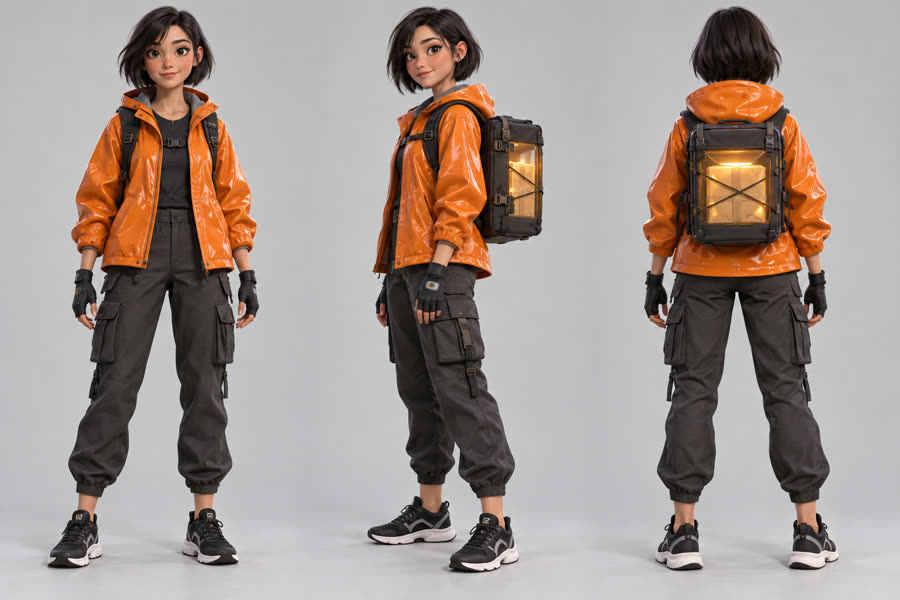
A character sheet on a plain background, a first frame that matches previz frame 1, and a style image for the mood. The pack includes all three plus the image prompts that made them.
Step 3. The H3 prompt
Use the official six-slot format and write the timing in seconds that match your previz keys (leap, landing, turn). If the prompt and the previz disagree, the video follows the previz. The full prompt is in 03_prompts/h3_prompt.txt.
Step 4. Load the workflow in ComfyUI
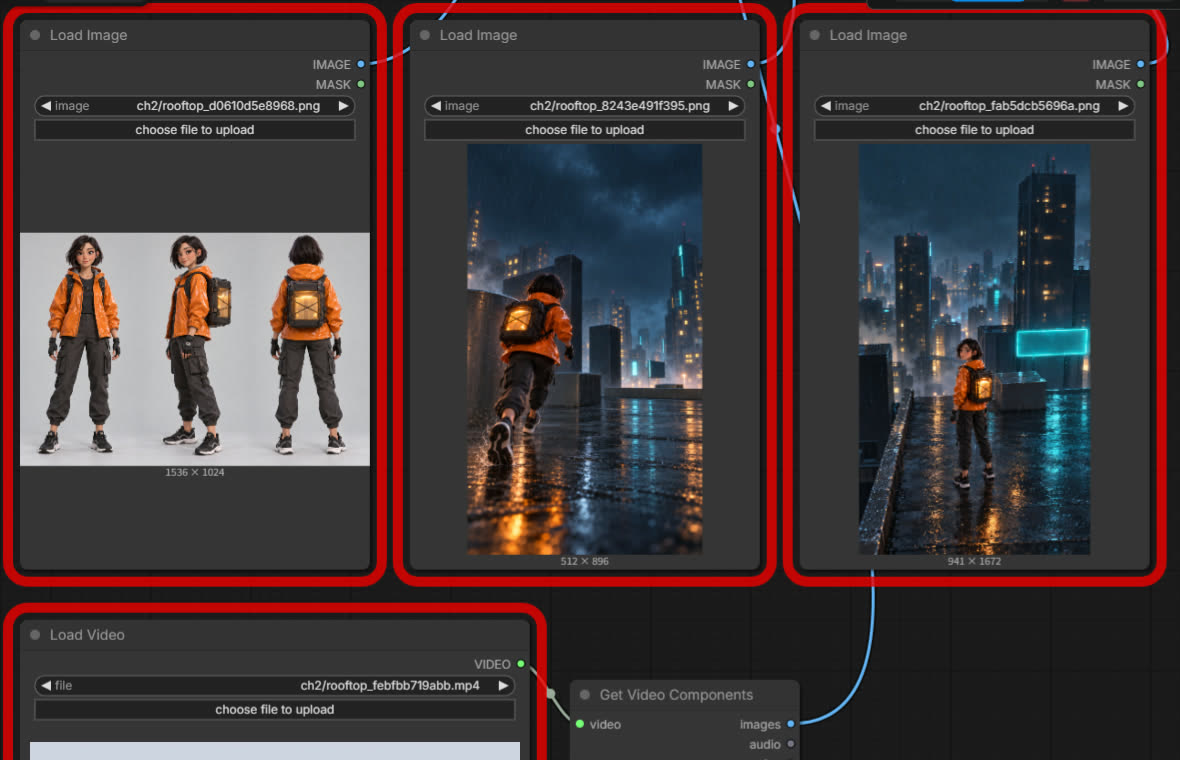
Drag 04_comfyui/rooftop_h3_ref2va_workflow.json into ComfyUI. Load the images in order: Picture 1 character sheet, Picture 2 first frame, Picture 3 style. Load the previz video as the reference video.
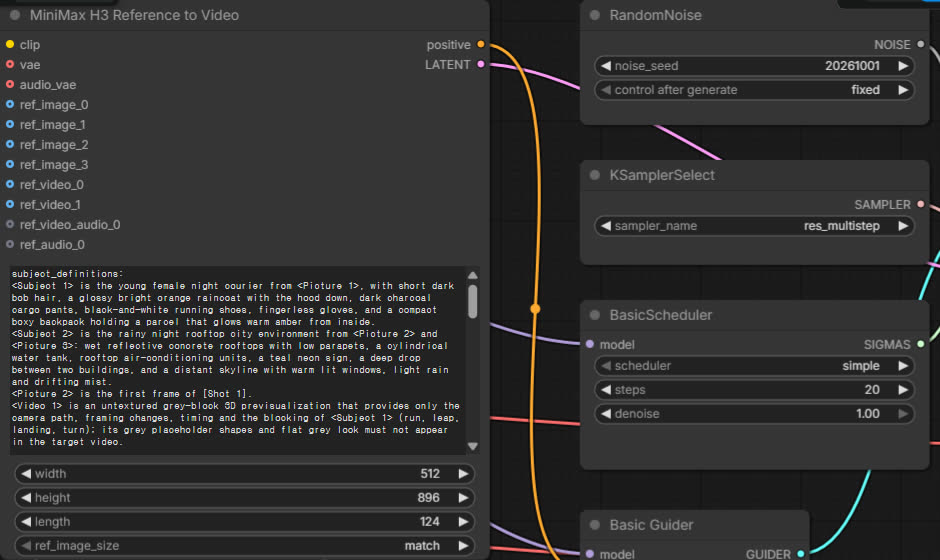
| Setting | Value |
|---|---|
| Model | MiniMax H3 Ref2VA (INT8) |
| Size | 512 × 896 |
| Length | 124 frames at 24 fps |
| Steps | 20 |
| Seed | 20261001 (fixed, so you can repeat the shot) |
Step 5. Render and check
Run it once. On a 32GB card it takes about 10 minutes. Check the landing frame against your previz. Landed early? Move the landing key in Blender and the seconds in the prompt together, then rerun. Change one thing at a time and log it.
No 32GB card? Rent one for 10 minutes
ComfyUI doesn't care whose GPU it runs on. Rent a 32GB card for the render, download your video, then switch it off.
| # | What you do | Time |
|---|---|---|
| 1 | On RunPod or Vast.ai, rent a 32GB-class GPU (RTX 5090 or bigger). Pick a ComfyUI template if one is offered. Add about 60GB of storage so the models stay. | 5 min |
| 2 | Download the four model files below into the pod's ComfyUI models folders. | 15-30 min, once |
| 3 | Upload the previz video and the three reference images, then load the workflow (Step 4). | 2 min |
| 4 | Run, download the mp4, stop the pod. The bill stops with it. | 10 min |
| Model file (Hugging Face: Comfy-Org/MiniMax-H3) | Folder | Size |
|---|---|---|
| minimax_h3_ref2va_pruned_int8_convrot.safetensors | diffusion_models | 20.97 GB |
| qwen3vl_32b_minimax_h3_int8_convrot.safetensors | text_encoders | 27.14 GB |
| minimax_h3_video_vae_int8_convrot.safetensors | vae | 2.81 GB |
| minimax_h3_audio_vae_fp32.safetensors | vae | 0.61 GB |
Cost per 5-second shot: about $0.08 (RTX 5090 from about $0.47/hr on Vast.ai) to $0.17 (RunPod Secure Cloud, $0.99/hr), plus about $6/month if you keep a 60GB volume. List prices we read on Oct 1, 2026. Rates change, so check before you rent.
Stuck? The six snags that stop most people
| What you see | Why | Fix |
|---|---|---|
| A model is missing from the loader list | Wrong folder, or added after ComfyUI started | Check diffusion_models, text_encoders and vae, then restart ComfyUI |
| The MiniMax H3 template doesn't show | ComfyUI is out of date | Settings, About: below 0.30? Update |
| Red outline on an input node | No file picked | Choose the file on each image and video node |
| Memory error right after Run | Not enough VRAM or RAM | Keep 512 × 896, close other GPU apps. Under 32GB? Rent one |
| The result ignores your images | Turbo (4-step Lightning LoRA) is on | Turn it off and use 20 steps |
| Length 120 throws an error | H3 only accepts certain lengths | Use 124, 141 or 158 frames |
Want the whole film?
This guide is one shot. The full guide takes it to a finished 1080×1920 video: fixing a shot that missed, the first-frame guide node, extra cuts and dissolves, safe-zone captions, AI music and eight SFX layers, upscaling, and swapping in your own character or product. Cloud GPU route included.
Pick the Angle. AI Paints It. (100-page PDF + every sample file)Video tutorials: YouTube @uclickai · More free recipes: uclickai.com